
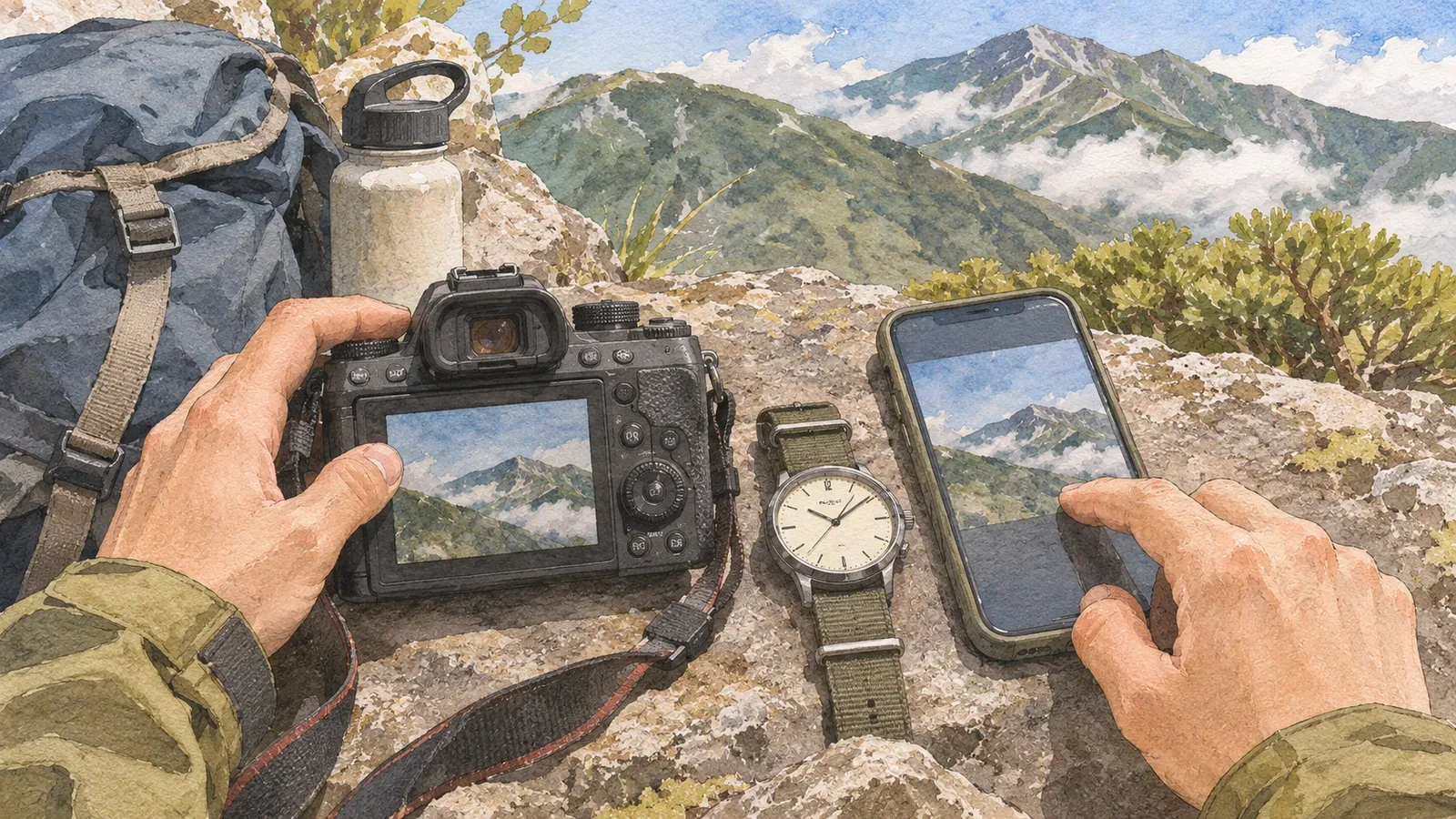
Before a hike, check the clocks on your camera and phone and note how far each differs from the same reference clock. That is the first step toward putting the photos from both devices in chronological order. Keep the dates on which photos were actually taken. Adjust only for differences you can trace to the device settings.
Camera settings determine the recorded shooting time
The Canon EOS Kiss X10i manual explains that the shooting date and time are added to the image and asks you to set both. Nikon's Z f guide similarly asks you to set the time zone, date and time before use to record them correctly. Check the values stored in the original image as well as how they appear after organizing, since they depend on how the device was set when you took the photo.
Time zone and daylight saving time are easy to miss. On the Z f, Time Zone and Date includes the time zone, daylight saving time, date and time, and date format. Turning daylight saving time on advances the clock by one hour. On the EOS Kiss X10i, enabling it moves the time forward one hour and disabling it moves the time back. Based on that behavior,if the minutes and seconds match but camera and phone photos are an hour apart, check daylight saving time and the region setting first to narrow down the cause.
The EOS Kiss X10i guide explains that once the area is set, changing the area updates the camera to the local date and time. If the area you want is unavailable, set the difference from Coordinated Universal Time (UTC). Canon asks you to verify the date and time after changing the area or time difference. Recheck the date and time on the display if you change settings at your destination.
Know when a camera clock can reset
On the Z f, a flashing t icon on the shooting display means the internal clock has reset and the shooting date and time will not be recorded correctly. Set Date and Time again. Nikon explains that the clock runs on a separate battery, which takes about two days to charge fully and then powers it for about a month.
The EOS Kiss X10i guide says the settings may reset if the camera is stored without the battery, if the battery runs out or if the camera is left below freezing for a long time. Set them again if that happens.
This behavior is specific to the Z f and EOS Kiss X10i. Check your own manual for how the clock retains its settings and how the device signals a reset. Check the phone too. On iPhone, open Settings, General, then Date & Time to check Set Automatically and the time zone. Restrictions can make automatic setting unavailable, so verify the time shown. Include any devices you have not used for a while in your checks before leaving.
Photograph the same clock to estimate the difference
Photographing the same reference clock gives you a way to compare the time shown in the photo with the stored shooting time. It is a simple record for later comparison. Do it at home so the camera controls do not distract you on the mountain. Display precision and when you press the shutter vary, so this is not a way to measure differences to the second.
First look at the time zone or area and daylight saving settings on the camera. Then use the camera and phone to photograph a wristwatch or wall clock in quick succession. Next, open the stored timestamp for each photo in your viewer and compare it with the clock in the image. How you display it depends on the software. Finally, record the differences at the start of your hiking notes, such as how many minutes the camera was fast and the phone was slow.
The clock in the photos may itself be off. The goal is toput a number on the difference between the two devices and decide which to use as your reference.If the difference is large, you can reset the camera clock. If it is small, you can allow for it when sorting. After changing a setting, repeat the test to check the result.
You can also record a shared reference during the hike. At a safe rest stop, take one photo with each device of the same subject, such as a trail sign or summit marker, in quick succession. Find the two photos later and compare the approximate difference during the hike. The time between shots contributes to the difference, so it cannot all be attributed to the clocks. If it differs from the offset you found at home, a clock or region setting may have changed on the hike. Do this while stopped and on secure footing. If you adjust a clock during the hike, note when.
When sorting, add or subtract the offset only for photos taken with the same settings and align them to one reference. If you use the camera as the reference, for example, put the adjusted phone timestamps in a separate column and keep the original times. You can try again if you discover you misread the difference.
Allow for differences in how locations were added
Location records can vary even when the dates line up. Google Photos Help explains that a location may be saved by the camera, added manually or estimated by Google Photos. The map only shows photos with an assigned location. If location records vary among photos, only some may appear on the map.
Google Photos can change or remove estimated locations and those added manually. Locations added automatically by the camera cannot be changed or removed there. If you share outside Google Photos, the original location stored by the device can appear. Check what each method reveals before sharing.
On iPhone, check Camera's location permission under Settings, Privacy & Security and Location Services. Check the actual photo details rather than relying on whether you had a signal. When a photo had no location at capture, distinguish locations estimated by Google Photos from ones you added by hand.
For photos without a location, you can note the time and place name in your hiking notes. GSI Maps shows a point's elevation and latitude and longitude, in degrees, minutes and seconds or decimal degrees. If you note coordinates, record which format you used to make them easier to read later.
Summary: note the offset before sorting
Camera timestamps depend on device settings such as the time zone and daylight saving time, and on whether the clock retained its settings. Before organizing,photograph the clock with both devices, measure the approximate difference and write it down.Add a date and time check and test photos to your preparations for the next hike. Location data can vary independently of the date, so use notes on times and places to fill gaps. If you replace your phone or camera, check the official guide for the new device.
References and sources
- Nikon Z f Guide: Setting the Date and Time
- Canon EOS Kiss X10i Advanced User Guide: Date, Time and Zone
- Apple: If you can't change the time or time zone on your Apple device
- Apple: About Privacy and Location Services in iOS, iPadOS and watchOS
- Google Photos: Understand, find and edit your photos' locations (iPhone and iPad)
- Geospatial Information Authority of Japan: Find the Elevation of a Location